For additional information about the new platform, please refer to our FAQs.
ProctorU
Okta uses ProtorU for exam scheduling, payment, and proctoring. ProctorU, now part of Meazure Learning, is a prominent online proctoring service designed to ensureand security for exams taken remotely. As a widely used alternative to traditional in-person test centers, the platform is utilized by universities, corporations, certification bodies, and professional organizations to validate test-taker identities and prevent cheating during online assessments. It functions by connecting test-takers with a live, trained proctor via webcam and microphone, who verifies identity, secures the testing environment, and monitors the test taker throughout the exam.
Registering for Okta Certification Exams
The first time you register for an Okta Certification exam, you will need to:
- Complete a ProctorU user profile and verify that your test-taking computer meets system requirements.
- Schedule and pay for your exam.
Okta Certification Exam Catalog Overview
The Okta Certification Exam Catalog is divided into two primary categories: Certification Exams and Practice Exams.
1. Certification Exams
These exams are designed to either earn or maintain an official Okta certification.
- Core Certification Exams: These are taken to earn a certification for the first time. They are the only exams that are live proctored and require scheduling through the Okta Certification Credential Manager and the ProctorU platform.
- Maintenance Exams: These are for individuals who already hold a certification and need to maintain its validity. They are unproctored, but still require registration via the Okta Certification Credential Manager and the ProctorU platform to select a specific date and time
2. Practice Exams
These preparation tools are found in the Preparation Resource section.
- Standard Practice Exams: These are unproctored and the only exam type that does not require access to the ProctorU platform. They are free, and you can launch them immediately upon registration.
- Premier Practice Exams: This is the most comprehensive preparation tool, designed to mimic the actual Core Certification Exam experience. While also unproctored, they must be scheduled through the Okta Certification Credential Manager and the ProctorU platform.
While the following example illustrates registration for a proctored Core Certification Exam, the majority of the instructions are also relevant for the unproctored Maintenance and Premier Practice Exams, as all three require registration on the ProctorU platform.
 Getting started
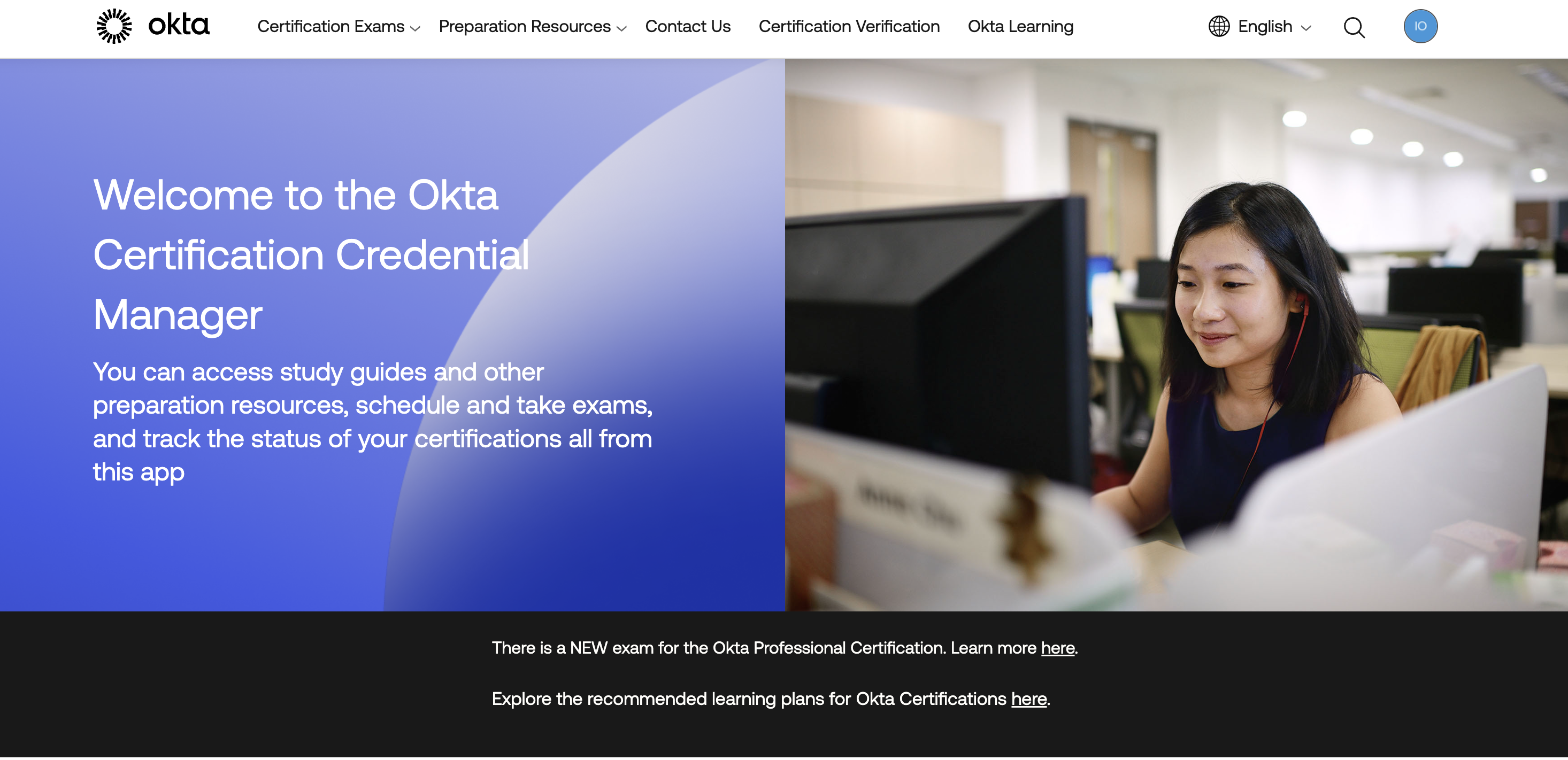
1. To get started, go to the Okta Certification Credential manager ( https://certification.asqula.com). From the Credential Manager landing page, you can select the exam you would like to register for. You can also use the Certification
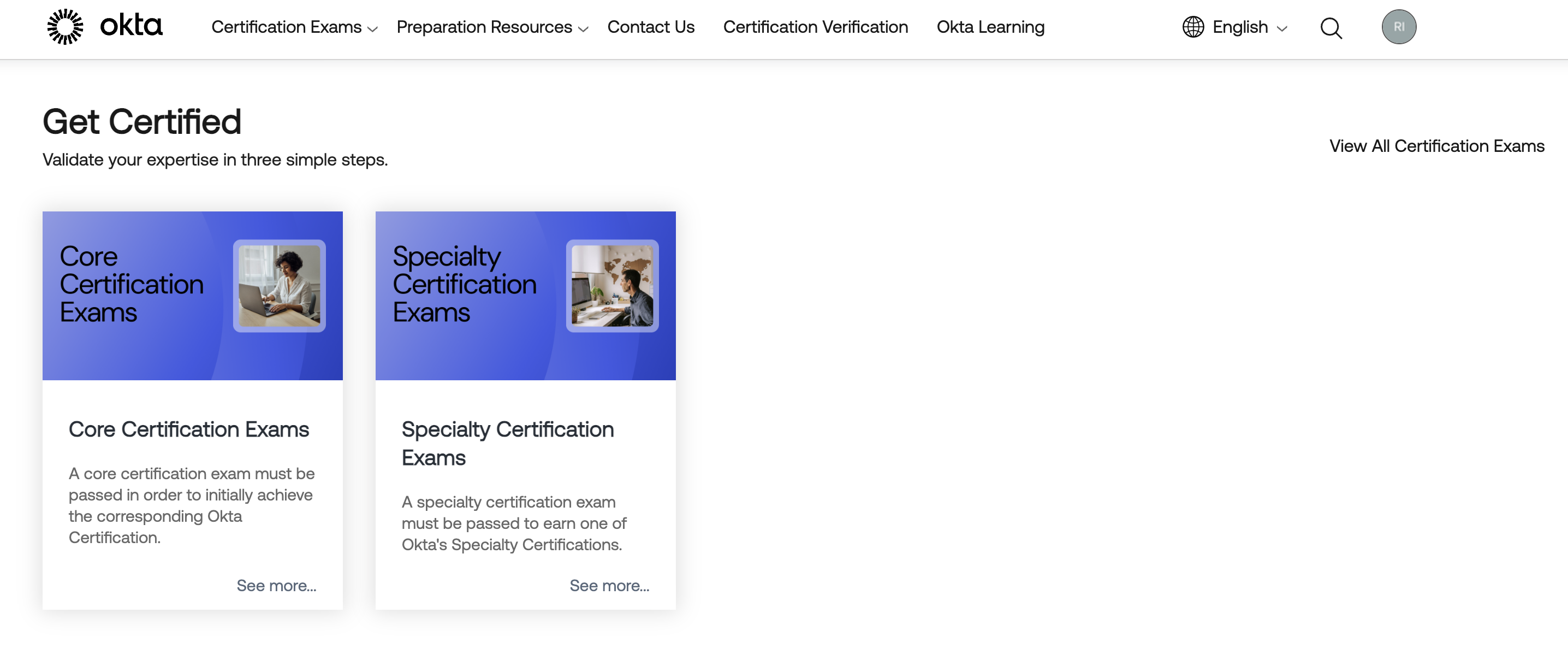
2. Scroll down until you reach the Get Certified section and select the Core Certification Exams tile. You can also use the drop-down selection menu from the upper menu bar and select the Core Certification Exams option.
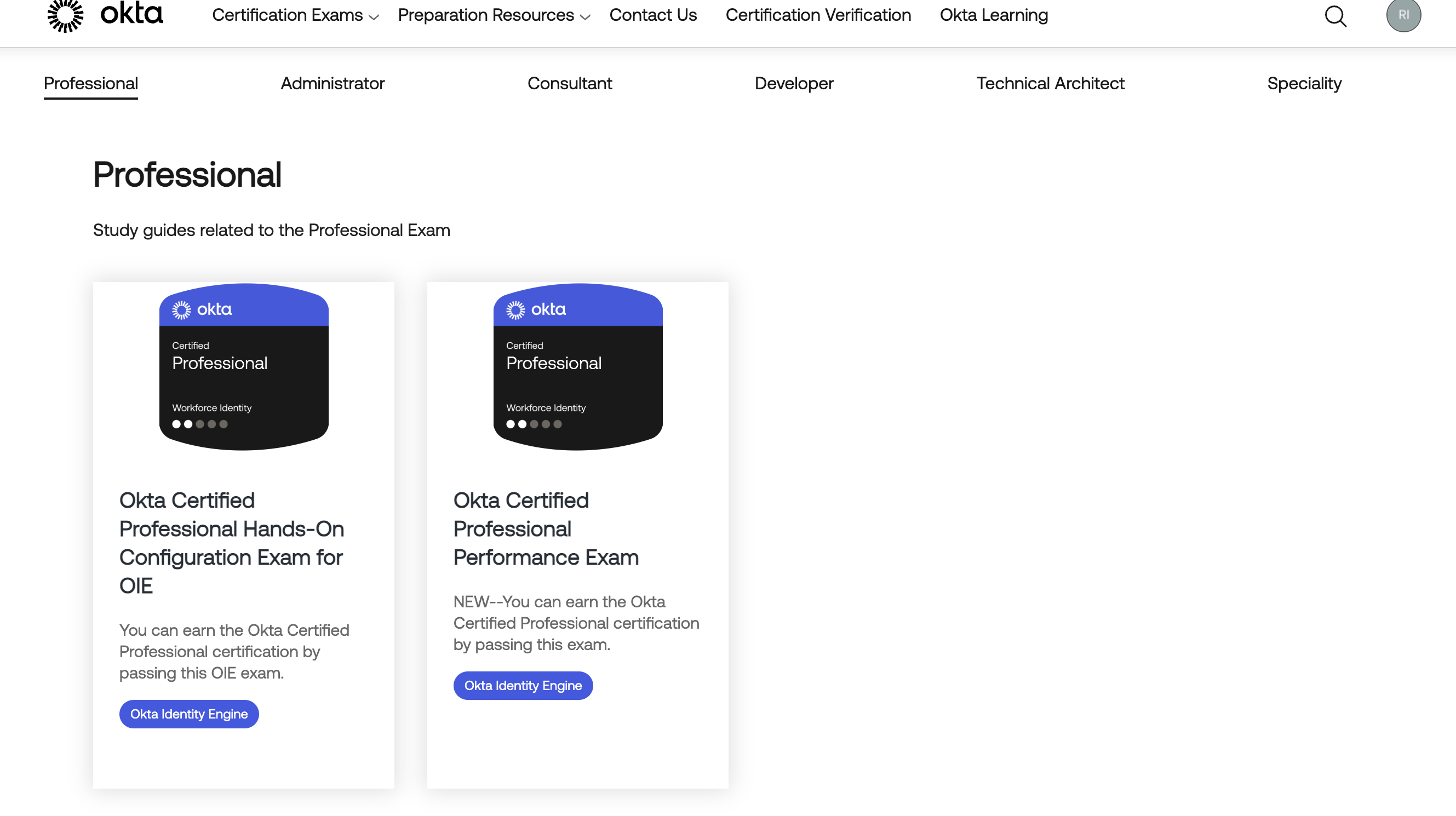
3. Select the tile of the exam you are interested in taking.
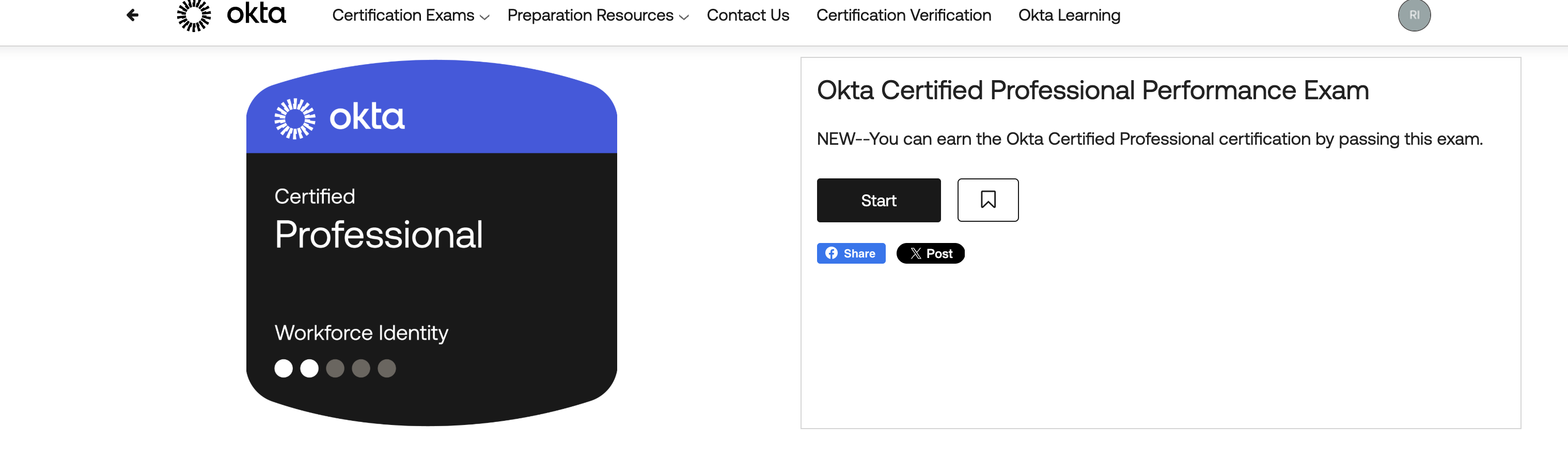
4. Click the Start button to proceed.
A screen with two tabs will appear. The Preparation Resources tab offers several options you can click for more information. Click the last link in the list of options to begin the exam registration process. The About This Course tab provides details about the type of exam, number of items, total time, and pricing.
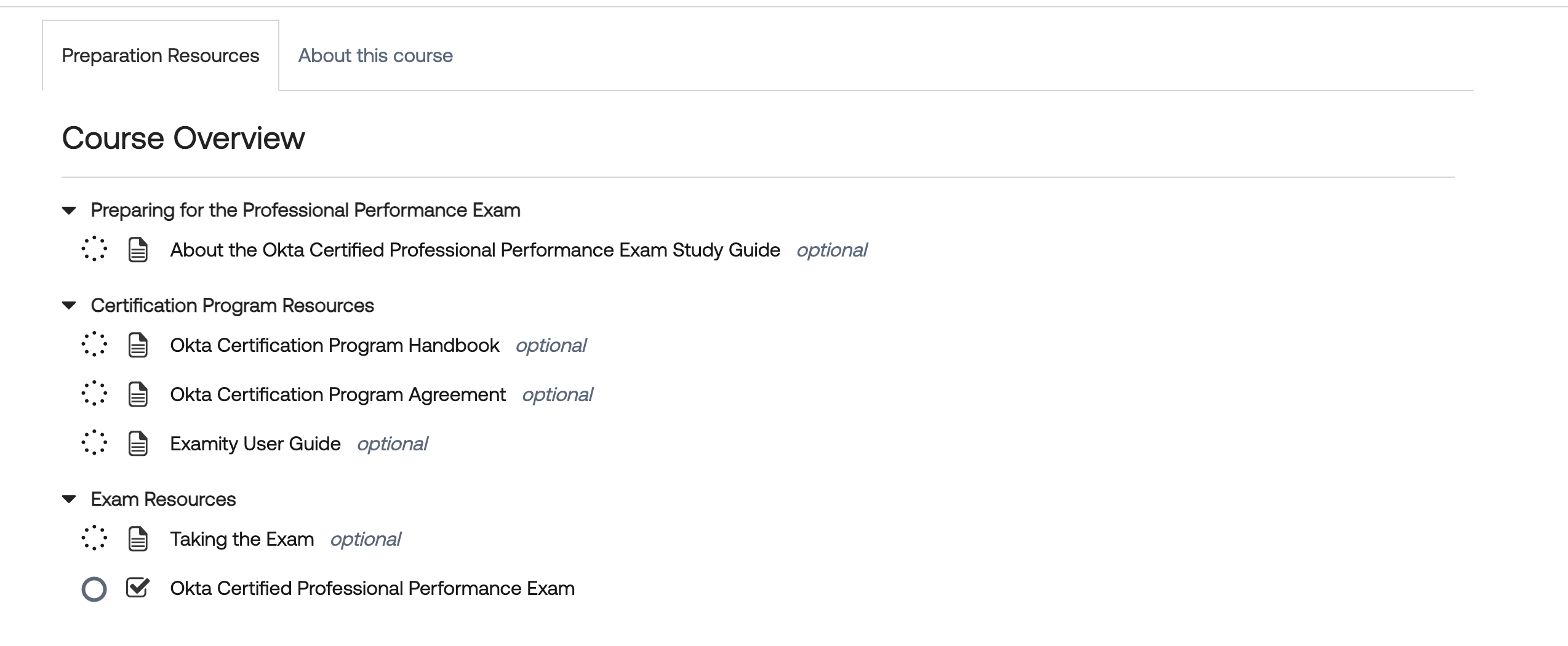
5. To complete a profile, click the link to Proceed To Exam Provider.
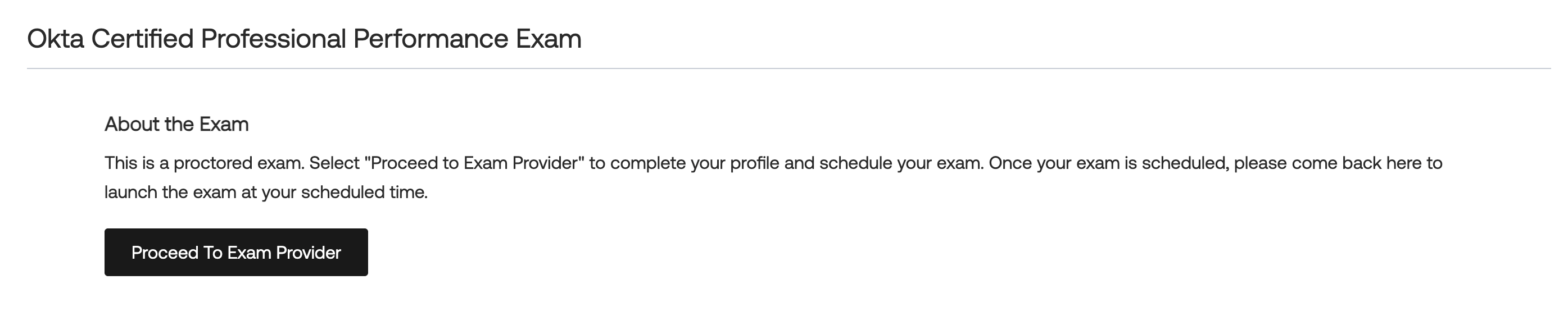
Completing a ProctorU User Profile
- Before you can pay for an exam, you need to complete a ProctorU user profile and verify that your test-taking computer meets system requirements. This is a one-time task, so next time you want to schedule an exam, just log in to the Okta Certification Credential Manager.

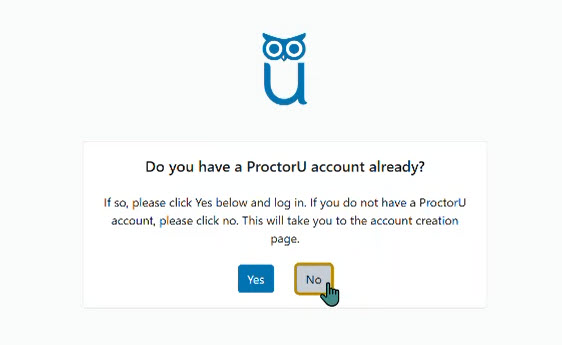
2. This will direct you to ProctorU. If this is your first time using ProctorU, click “No” to create a new profile.
If you already have an account, you may click “Yes” to login.
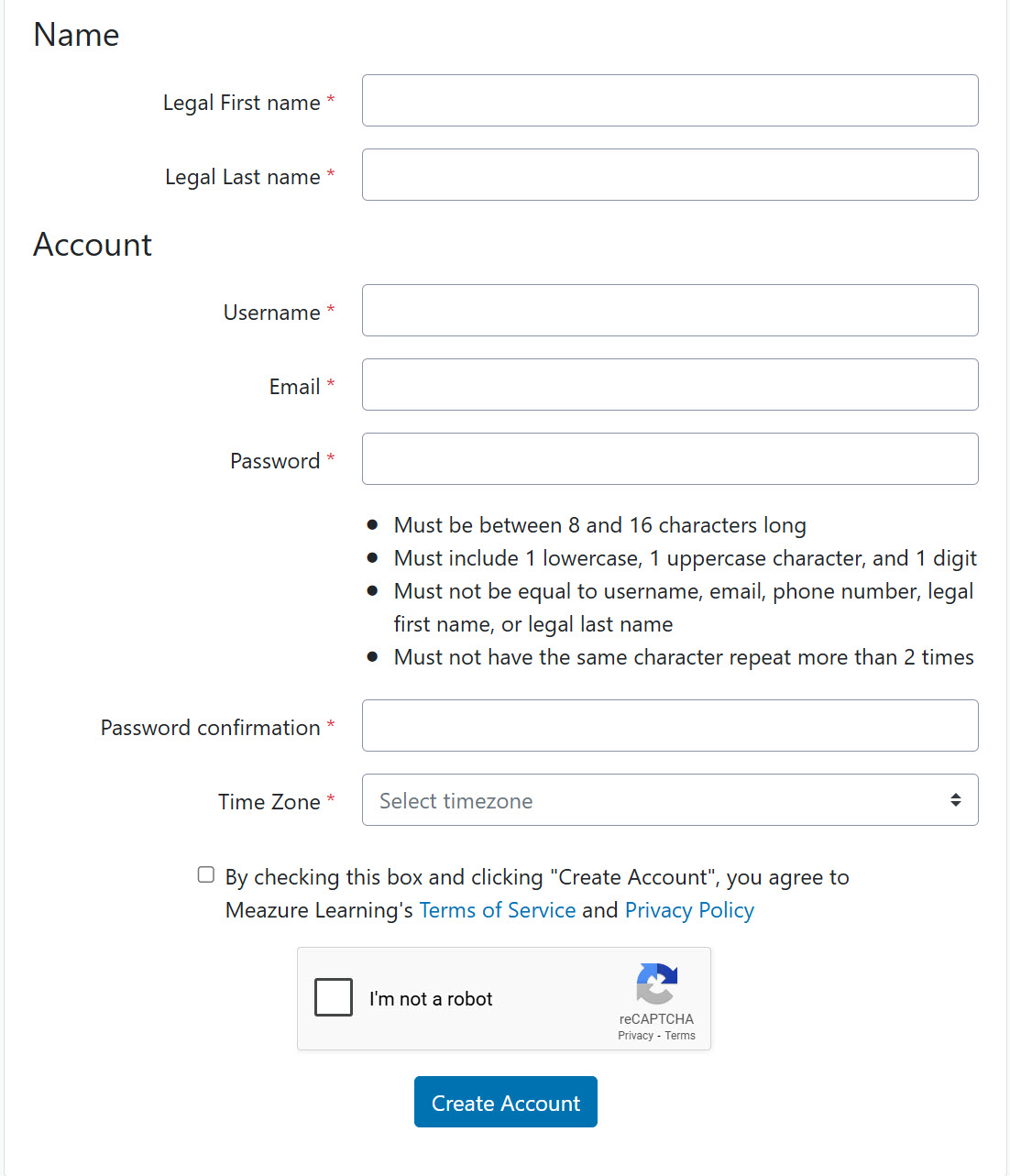
3. You must complete all required fields of your user profile and agree to Meazure Learning’s Terms of Service and Privacy Policy before you may schedule your exam. Click Create Account.
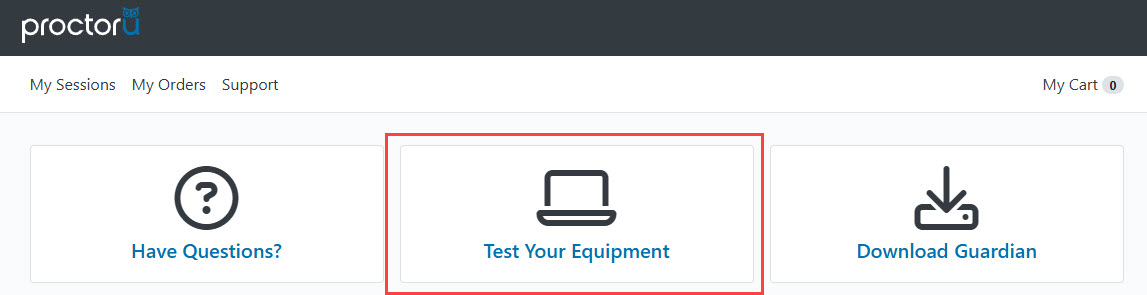
4. Verify that the computer you will use on test day meets system requirements. In the upper middle of the My Sessions page, click the Test Your Equipment tile.
5. You may be prompted to download the Guardian Browser if you have not done so already. Follow the instructions on screen to open Test It Out. Once opened, wait a few moments for ProctorU to check your computer. After each element is confirmed, you will receive a green check.
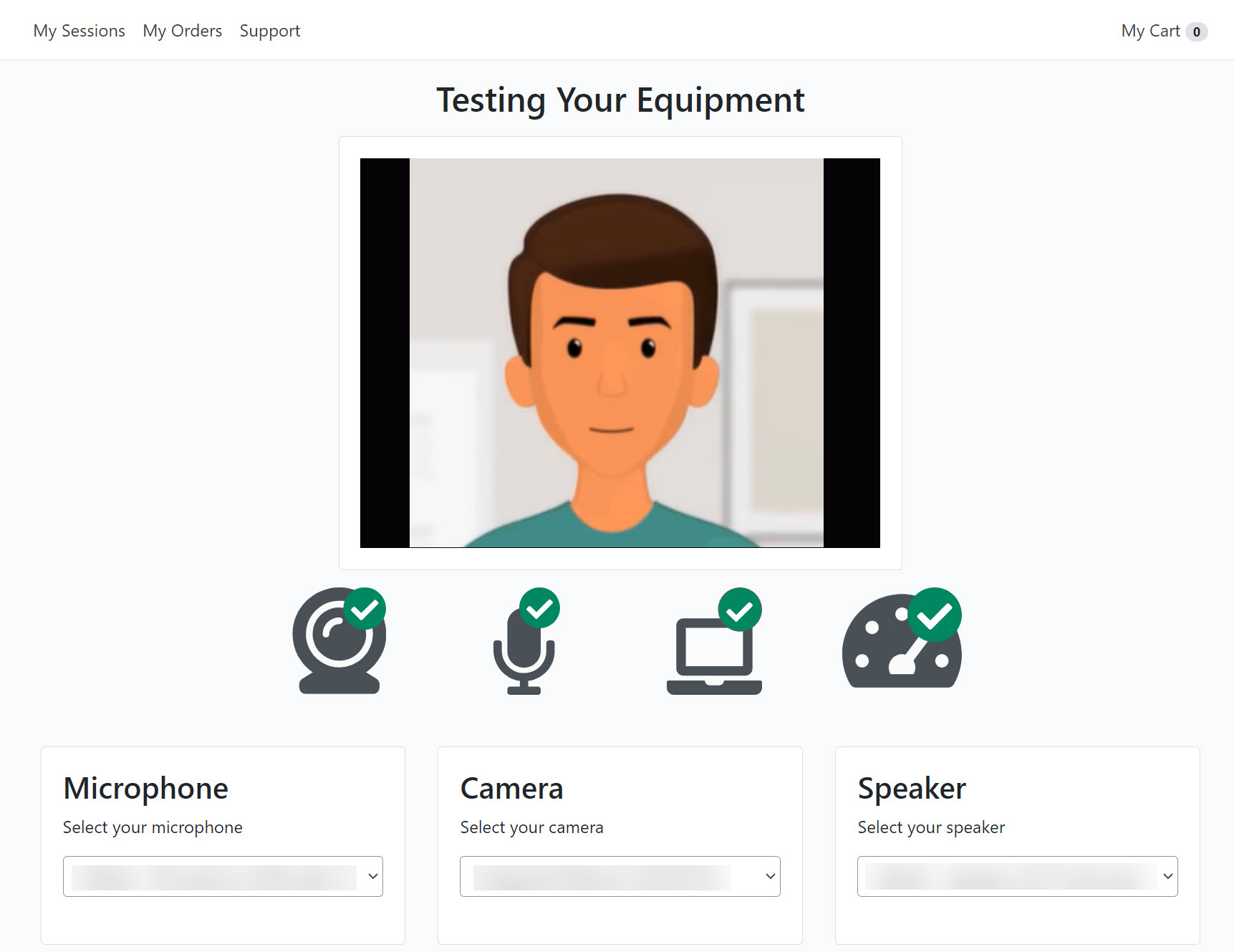
If any element has a red X, review the details below the results and use the chat at the bottom right of the screen to contact Meazure Learning Support.
Scheduling an Exam
Schedule your exam at least 24 hours before taking the exam. If you are scheduling less than 24 hours in advance, you will be charged an additional fee for scheduling less than 24 hours in advance. Unproctored exams do not incur additional fees within 24 hours.
1. Log in to https://certification.asqula.com
2. Follow the steps in the getting started section to access the ProctorU dashboard and schedule your exam.

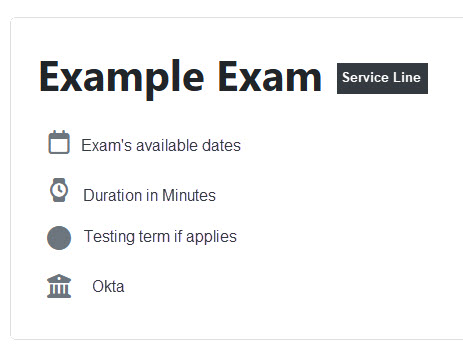
3. Review your exam details.
4. Using the calendar, select your preferred exam date and time and click Select and Schedule.
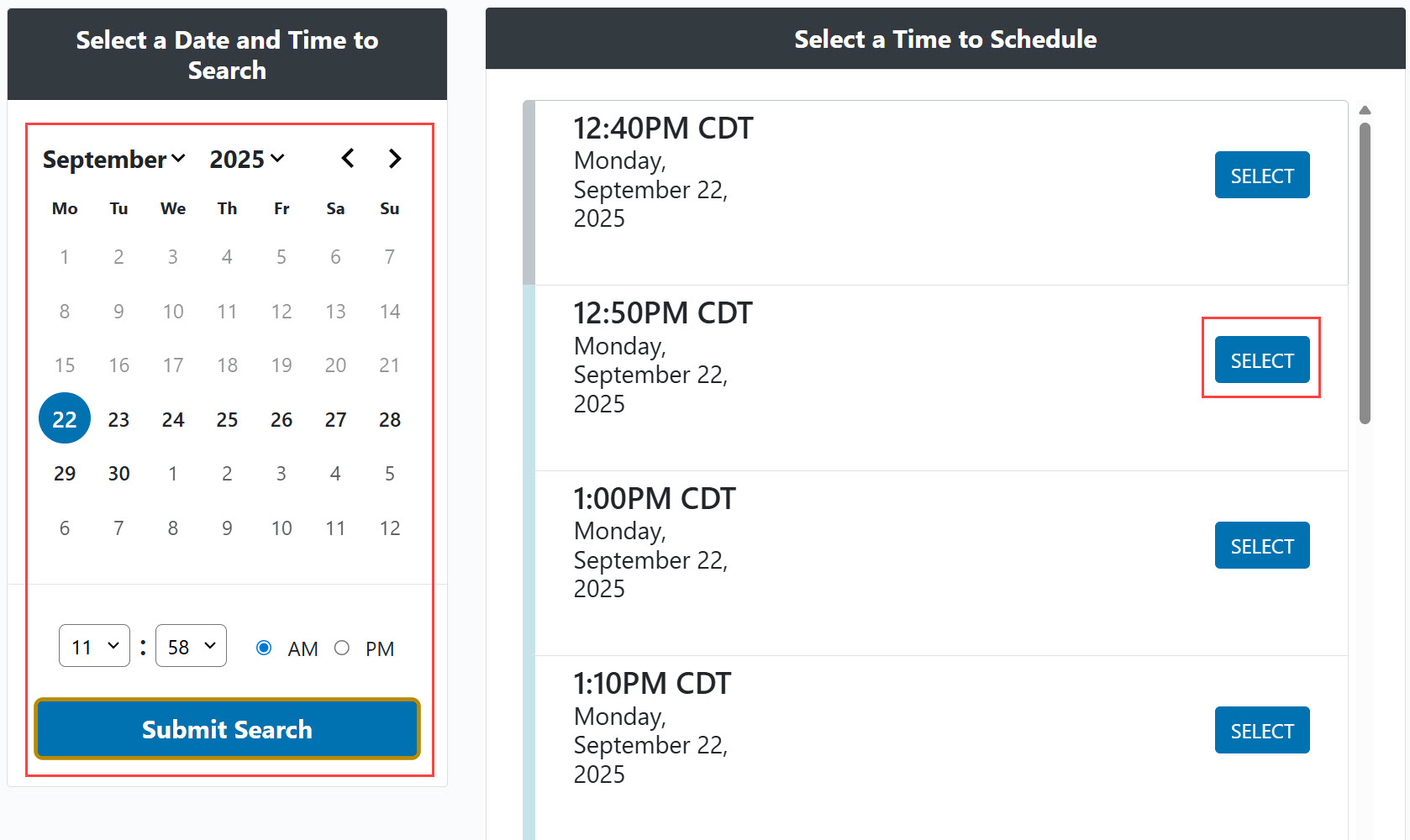
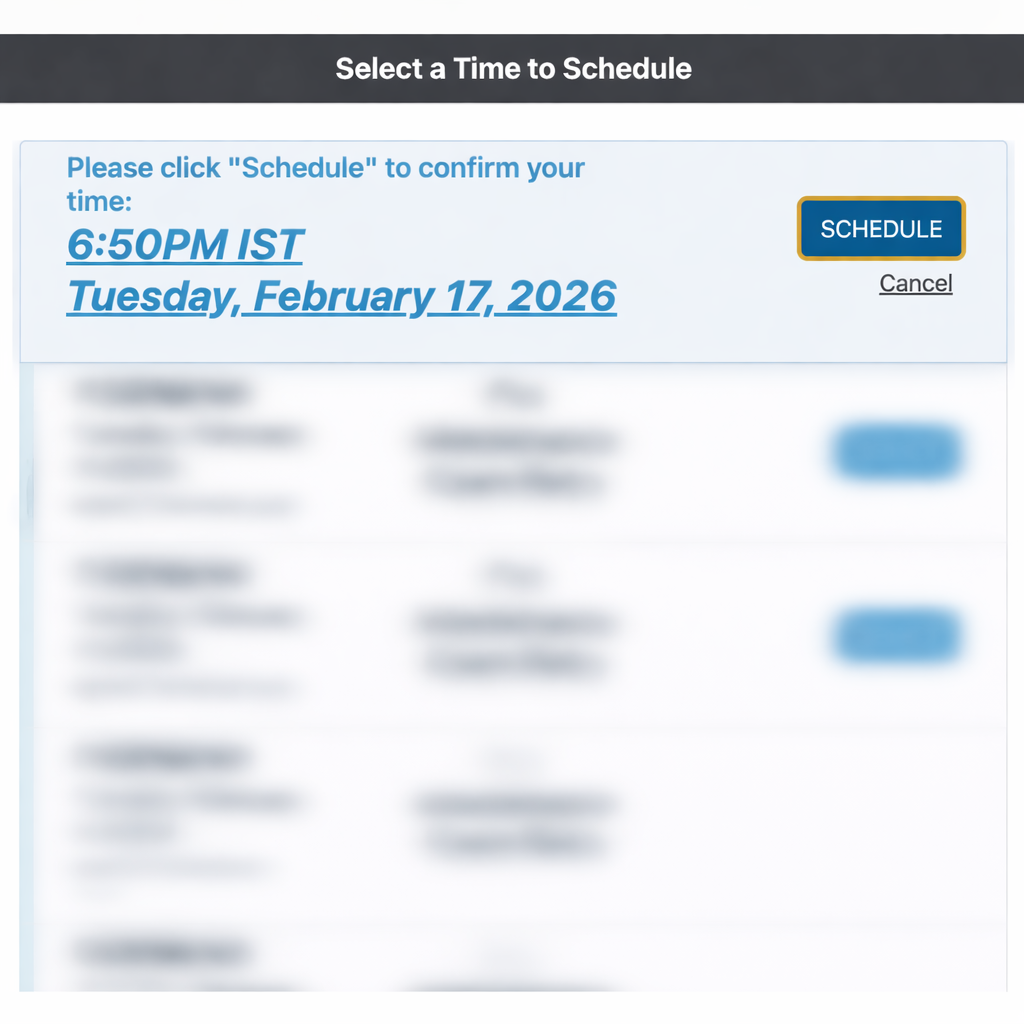
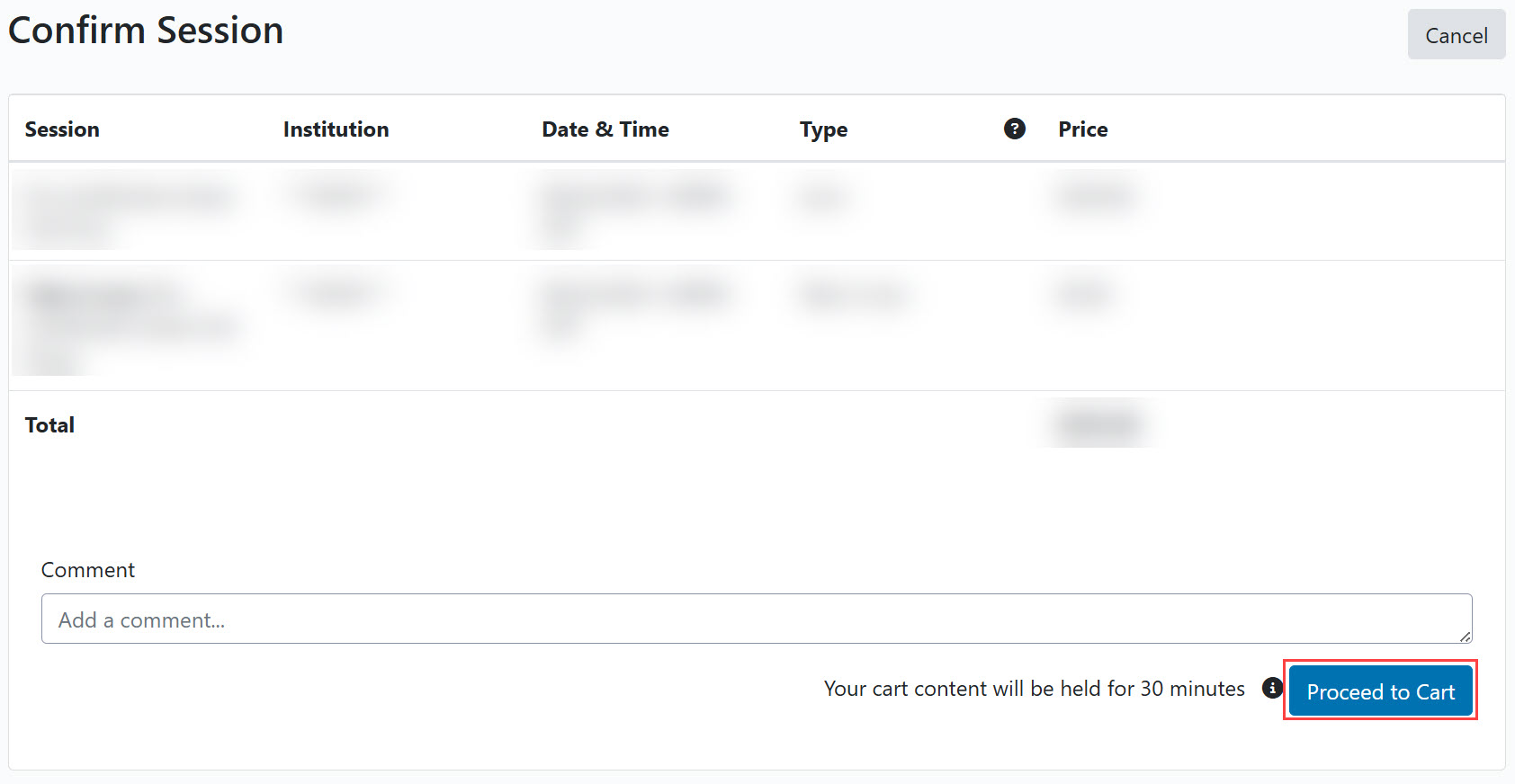
5. Confirm your session and click Proceed to Cart.
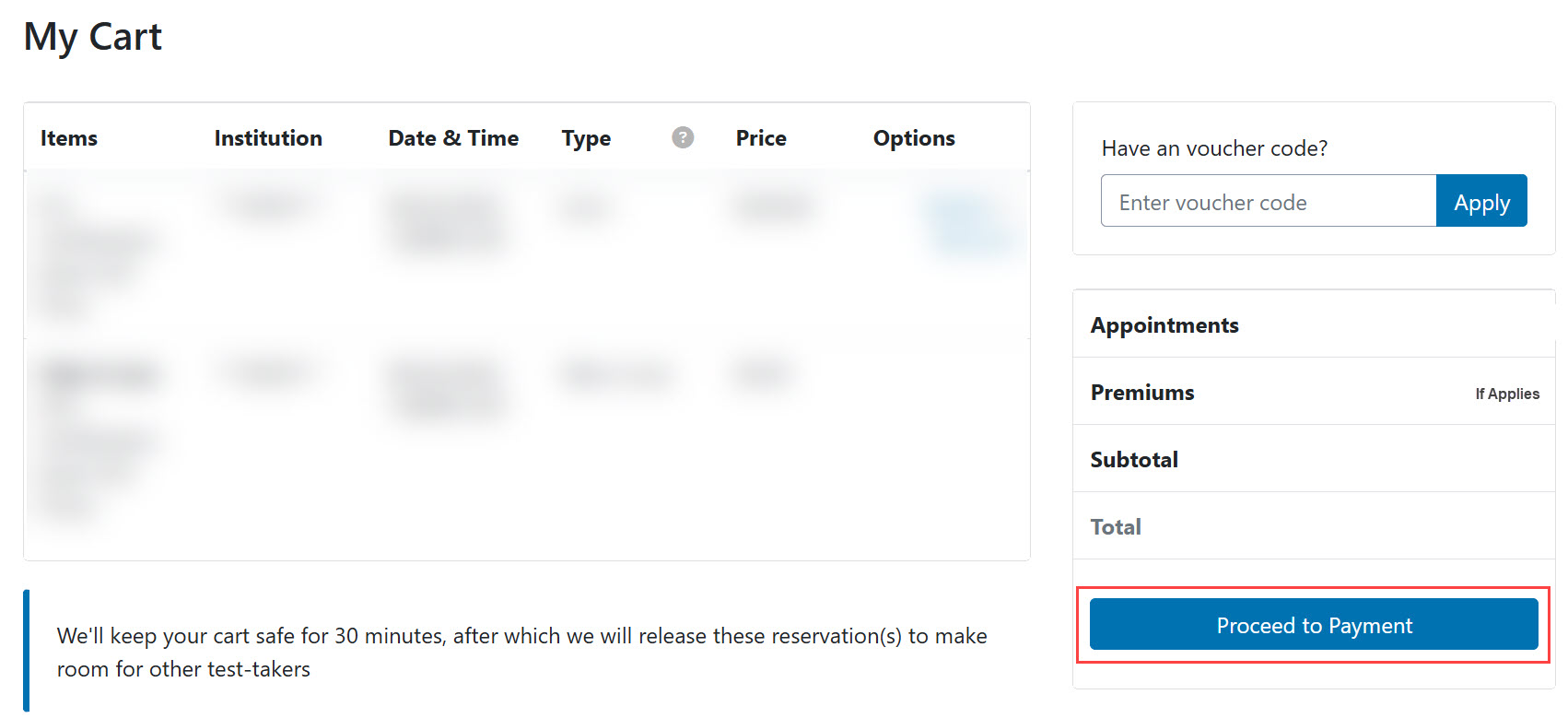
6. For exams that require payment, charges must be paid with a voucher, credit, or debit card at the time of scheduling. If you have a voucher code, you may enter it on the My Cart page. Then click Proceed to Payment.
7. If required, you will be prompted to enter payment information on a secure page connected to a third-party payment processor. The page is encrypted, and the ProctorU Platform does not see or store any credit card data. You are required to re-enter payment information each time new charges are incurred.
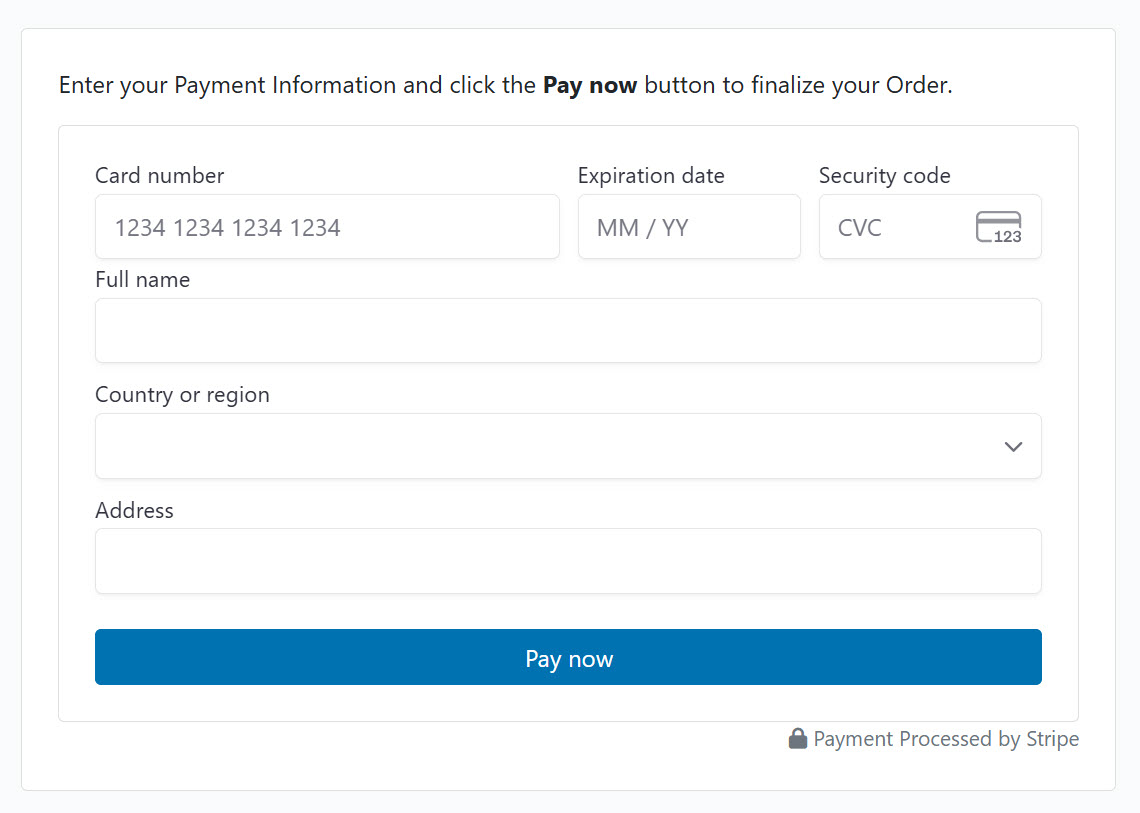
If you are not prompted for payment, you will see $0.00 as your total.
8. You will receive an email notification confirming your exam appointment.
Make sure you have reviewed the terms & conditions outlined in the Okta Certification Program Agreement and the policies outlined in the Okta Certification Program Handbook in advance. On test day, you must agree to the Okta Certification Program Agreement before you will be allowed to take your exam.
Rescheduling or Canceling an Exam
If you need to reschedule or cancel your exam, you may do so up to 24 hours before the start of the appointment without penalty. You may not reschedule or cancel an exam appointment after it has started.
- Log in to https://certification.asqula.com
- Follow the steps in the Getting started section to access the ProctorU dashboard.
- On the ProctorU dashboard, go to My Sessions using the top navigation bar.

- Locate your exam under the Scheduled Appointments section.
- To reschedule, click Reschedule and choose a new appointment time. To cancel, click Cancel.
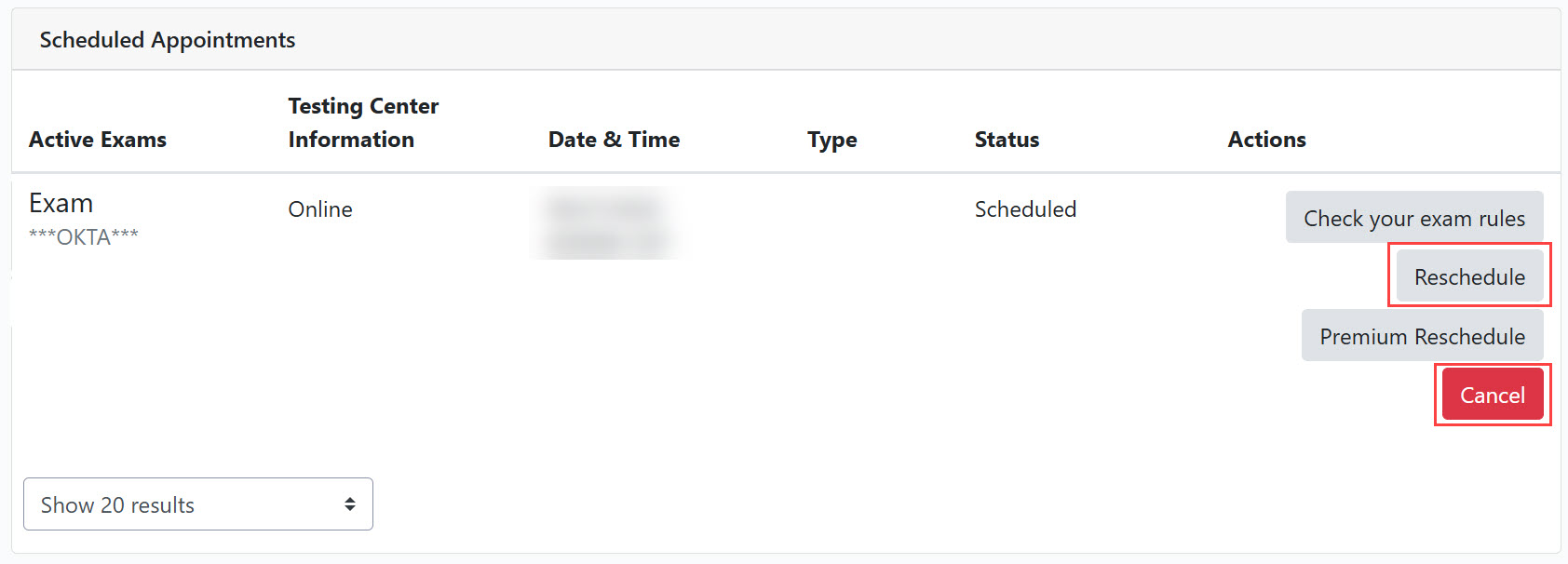
You will be blocked from cancelling your appointment within 24 hours of your scheduled appointment time.
6. If you cancel your appointment, you will be prompted to leave a comment on the cancellation.
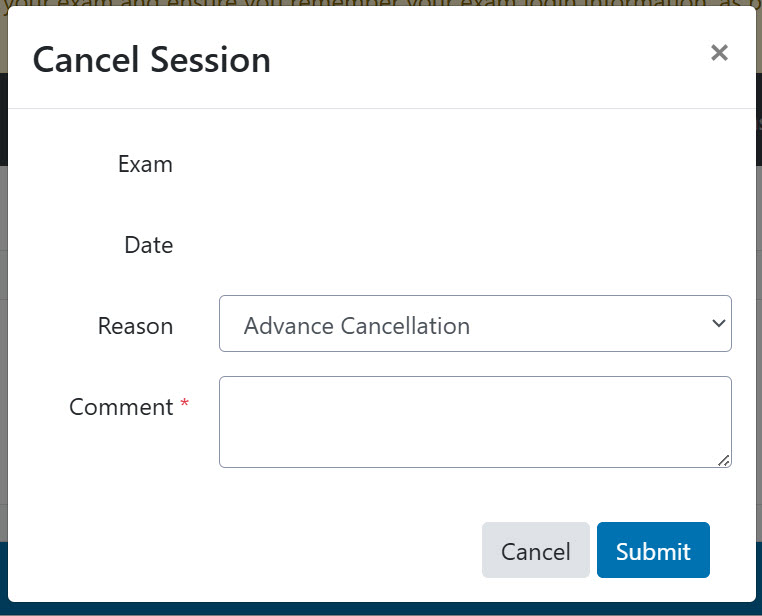
7. You will receive an email confirming your updated appointment time or confirming your cancellation.
Taking the Exam
Make sure you have reviewed the terms & conditions outlined in the Okta Certification Program Agreement and the policies outlined in the Okta Certification Program Handbook in advance. On test day, you must agree to the Okta Certification Program Agreement before you will be allowed to take your exam.
What to Expect on Test Day
Before you take an exam, you need to have the required equipment. You also need to organize your test-taking environment so it complies with stated rules. For proctored exams, the proctor will perform an authentication of your identity and verify your test-taking environment before you may start your exam.
Required Equipment
Make sure you have the right tools with you on test day. The following items are required:
- Non-Expired Government-issued ID with Picture
You will show this to the automated prechecks via webcam during authentication. Please compare the name on your appointment to the name on your non-expired government-issued identification card. They must match in order for you to take your exam. If they do not match, please reach out to Okta Certification Support at certification@asqula.com for assistance.
- Computer or Laptop
-
- PC (Windows 10 or later) or Mac (Mac OS 11.0 or later) connected to a power source.
-
- You must be allowed to download software to this computer.
-
- Wired internet connection with minimum 3 Mbps (3072 Kbps) Upload & Download Speed.
- Complete an equipment check and internet speed test.
- Webcam
- It must be portable enough to scan the room. Proctored exams will require a visual inspection of your workspace.
- Microphone
- All microphones other than those built into headphones or earbuds are permitted.
- Speakers
- Built-in or external speakers are required.
- A Cell Phone or Reflective Surface
- May be used during proctored exams to secure the front of your monitor. Proctored exams will prompt you to remove your cell phone before the exam if not permitted during your exam.
Prohibited equipment
- Dual monitors are NOT allowed.
- Use of headphones or earbuds are NOT allowed.
Exam rules
Make sure you have prepared your testing environment so that you comply with all exam rules.
- You must be alone in the room throughout the test. If you take the exam at your place of work, please book a conference room or an equivalent private space. Do NOT take the exam in a cubicle or your exam may be interrupted.
- Your webcam, speakers, and microphone must remain on throughout the test. During a proctored exam, the proctor must be able to hear, see, and speak to you for the duration of the test.
- You should be seated at a hard surface like a desk or table, and preferably with your back to the main room entrance. Standing desks will not be permitted.
- You must have a clear desk and clear workspace. No food or scrap paper are allowed.
- Proctored exams will conduct a room scan via webcam.
- You may not leave your seat without permission.
- Unless specified for the exam, no bathroom breaks are allowed during the session. If your proctored exam allows bathroom breaks, please inform the proctor before you take your break. Your exam timer will not be stopped while you are on your break. Your proctor will also have the right to request an additional room scan when you return from your break.
- You may not speak to anyone other than a proctor during the exam.
- If you are having any issues, you may speak to the proctor if available or Meazure Support.
Start the exam
Sign into the exam 2-3 minutes before your scheduled exam appointment. This will allow sufficient time to get connected to your proctor. A live proctored launch will take between 10 to 15 minutes, but this does not take away time from your exam since the exam timer does not start until you start your exam.
1. Log in to https://certification.asqula.com.
2. Follow the steps in the Getting started section to access the ProctorU dashboard. On the My Sessions page on your ProctorU account, there will be a countdown timer showing you how much time you have until your next exam. When the timer reaches 0:00, a Start Session button will appear. For unproctored exams, you may start them immediately.

3. Click the Start Session button to begin your session. This will not take you into your exam immediately. You will need to complete a brief start process before your exam is unlocked. If you log in 60 minutes after your scheduled time, the start button will no longer show under My Sessions because you have missed your exam. You will have to schedule a new exam time. Please note if you fail to show up for a scheduled exam without notice or advanced cancellation, you will not be eligible for a refund.

4. Download Guardian Browser if you have not done so already. You will be prompted to open Guardian Browser to begin your session.
5. Once you have launched your session you will be taken through the pre-check process, a series of steps to help prepare your device and authenticate your identity.
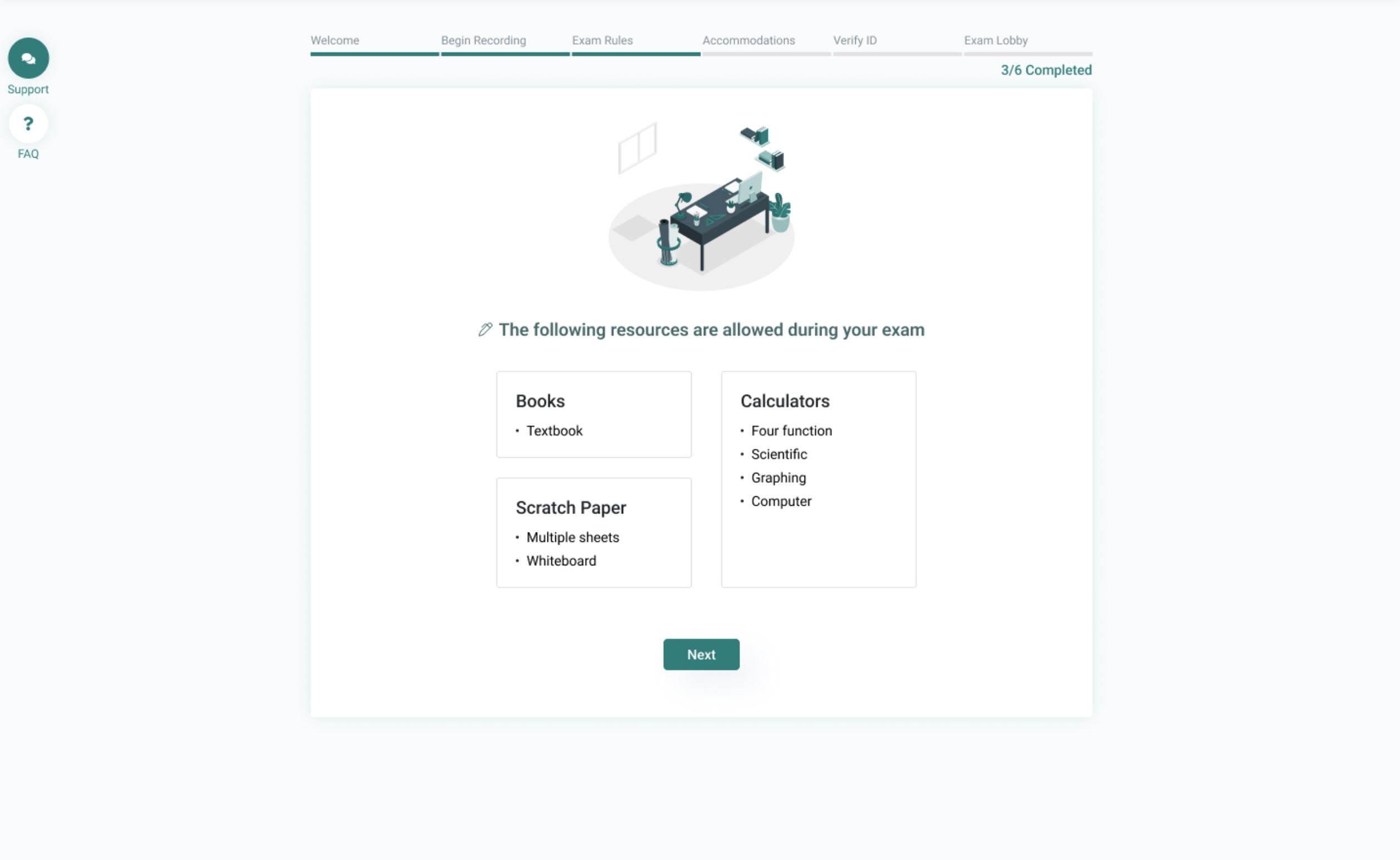
6. Welcome: The welcome screen will let you know what to expect during your exam, which resources are allowed, and a list of any accommodations you may have. Once you are ready, click the “Get Started” button to move forward.
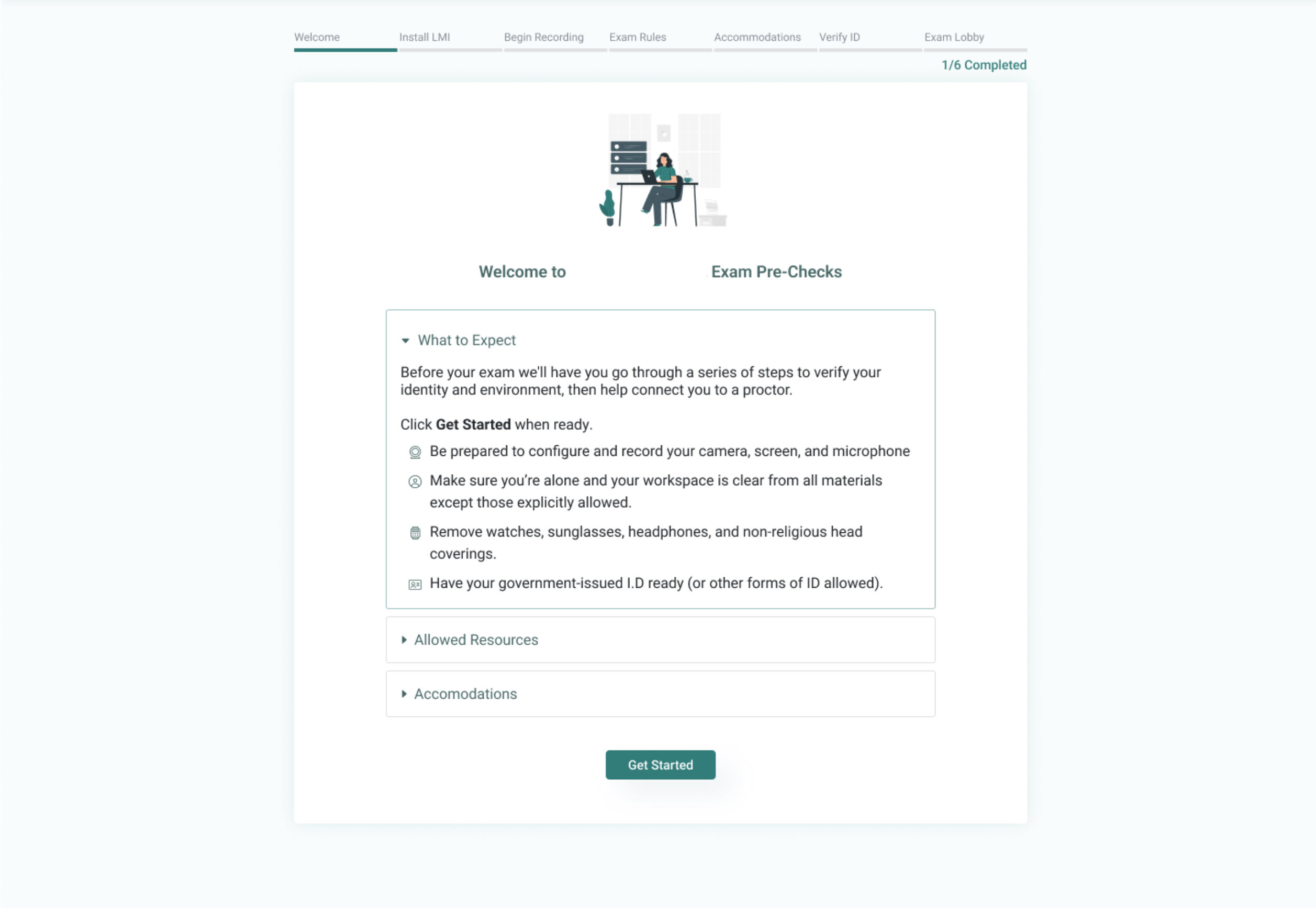
7. Begin Recording: Next, you will see a device selection screen. You can select the camera and microphone devices you wish to use during your exam.
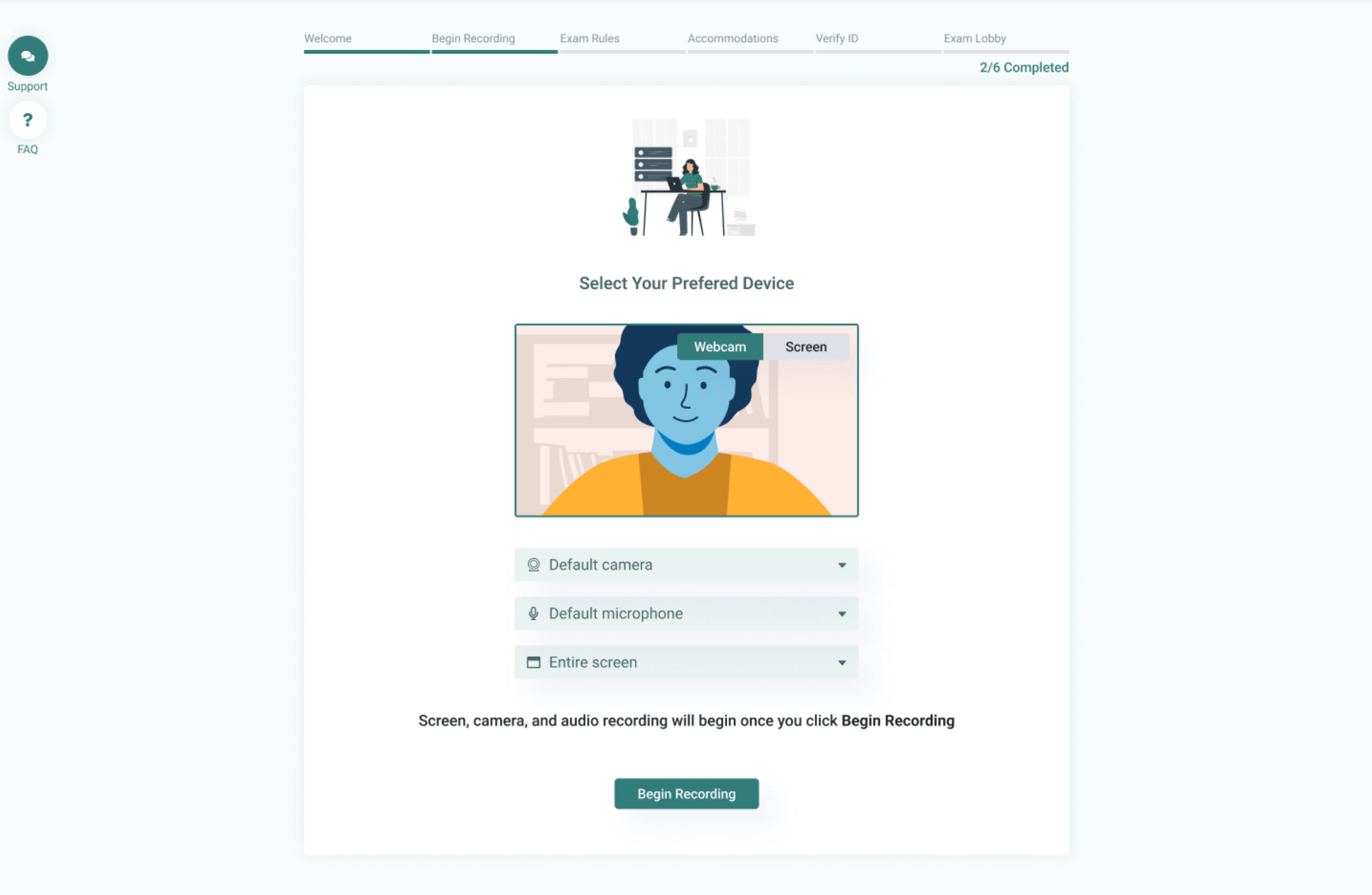
8. Exam Rules and Accommodations: The next screens will show allowed resources and materials, followed by any accommodations applied to your account or exam.
If you believe you have an accommodation that is not listed on this screen, your proctor will be able to confirm it before your exam begins.
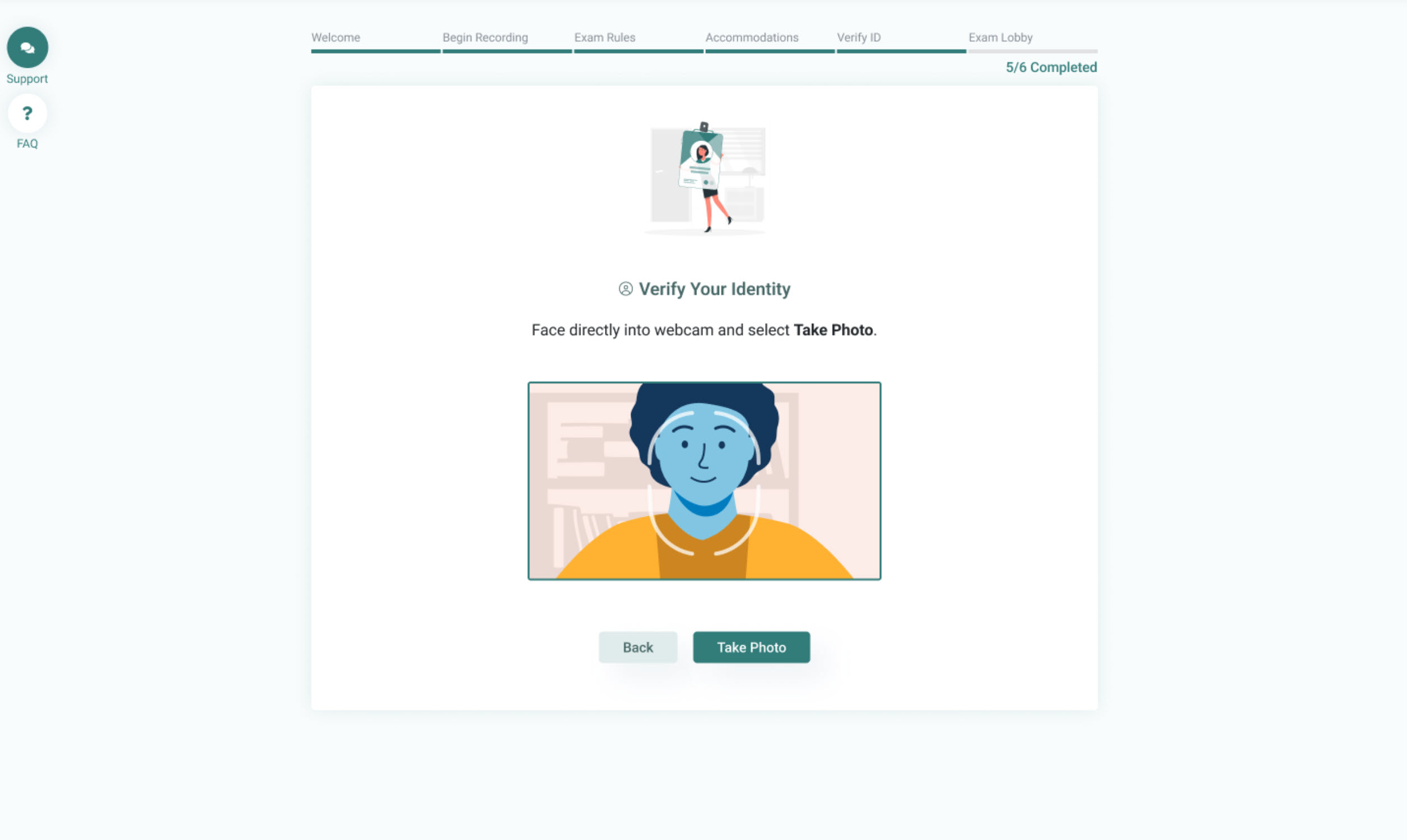
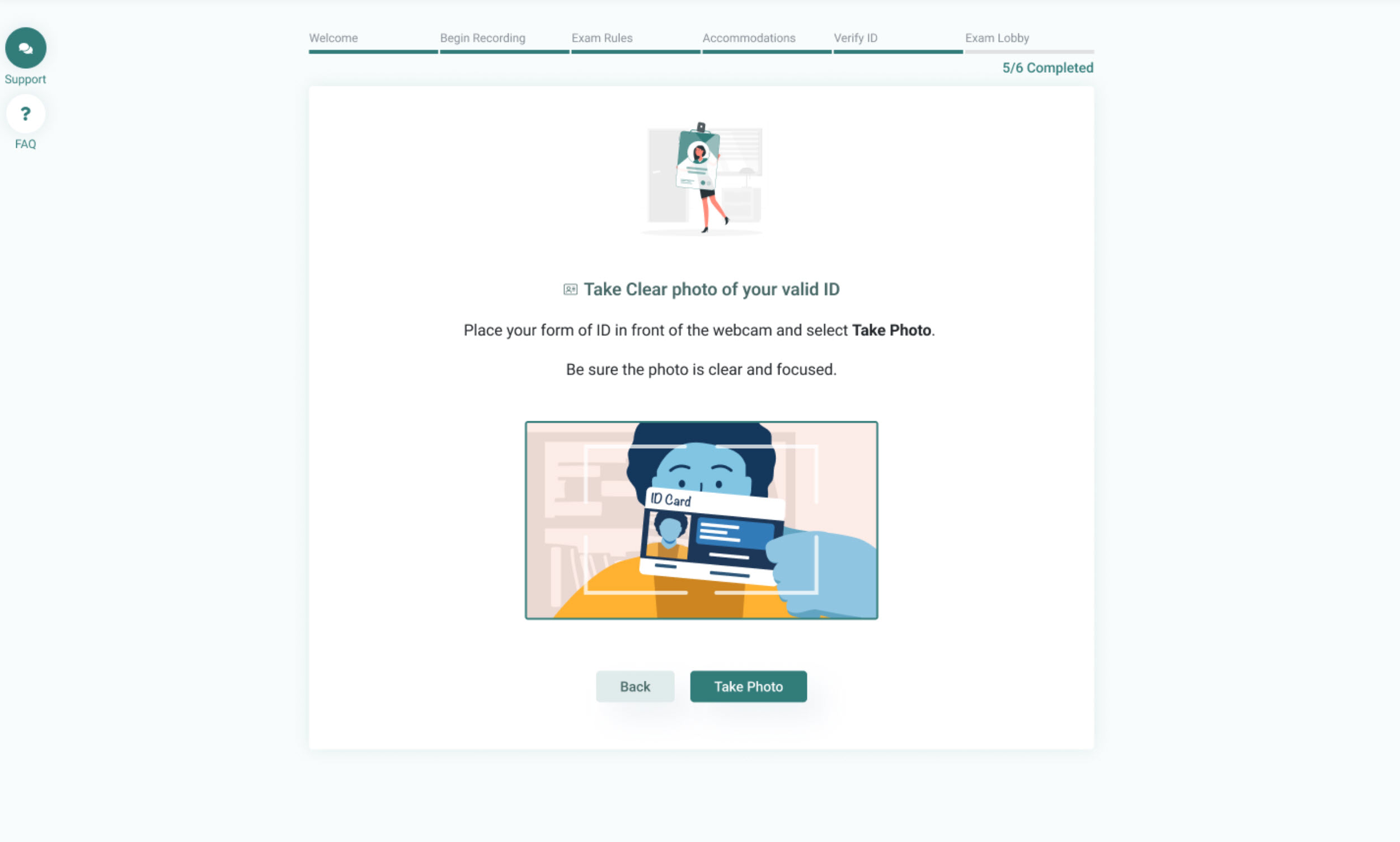
9. Verify ID: You will be prompted to take a photo of your face and an approved form of ID.
10. Exam Lobby: The final screen of the pre-check process is the exam lobby where you will be shown an expected wait timer or the option to begin your exam for unproctored exams. If you are taking an unproctored exam, click Begin Exam and skip to step 12. If proctored, your proctor is on their way!
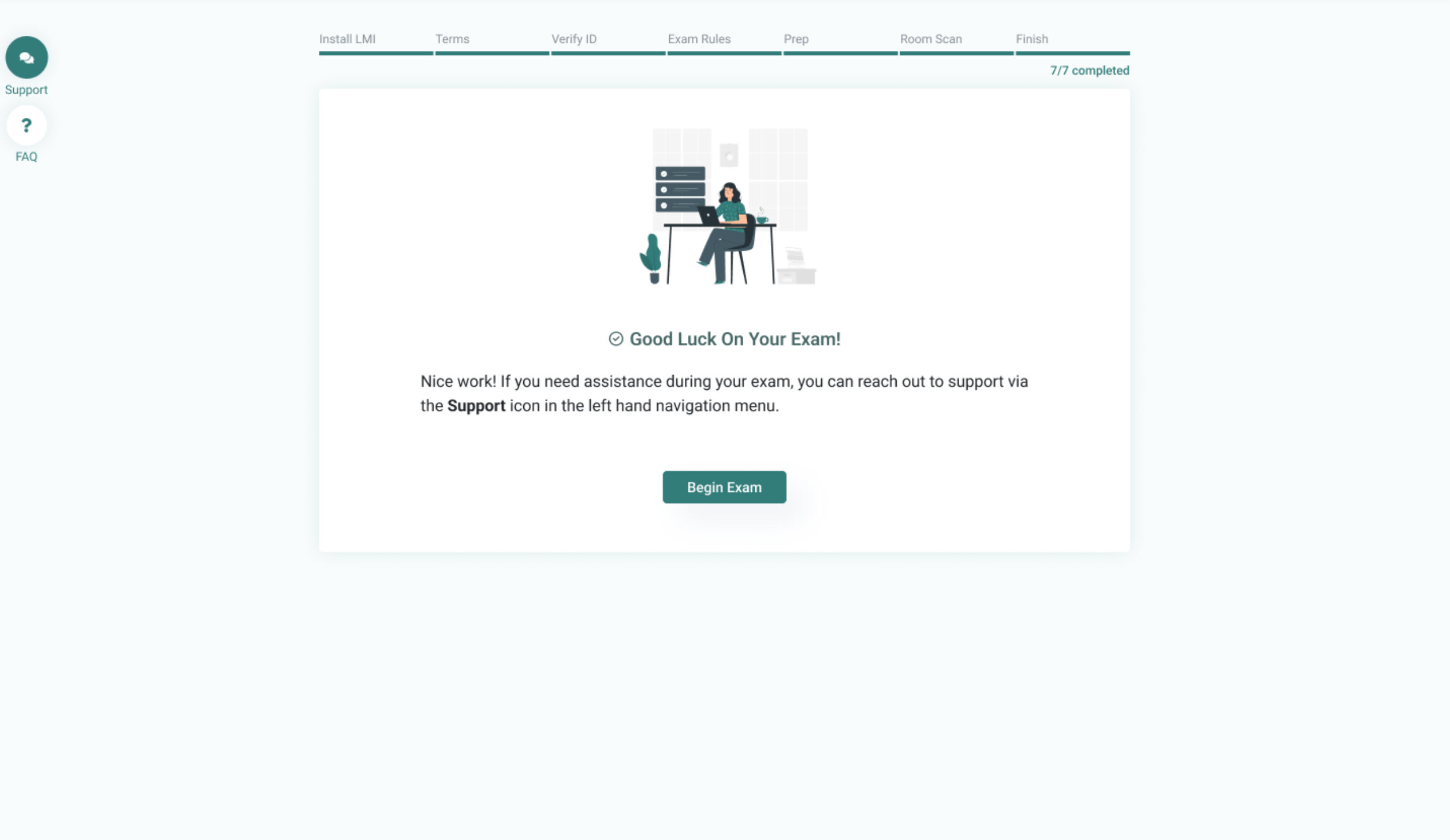
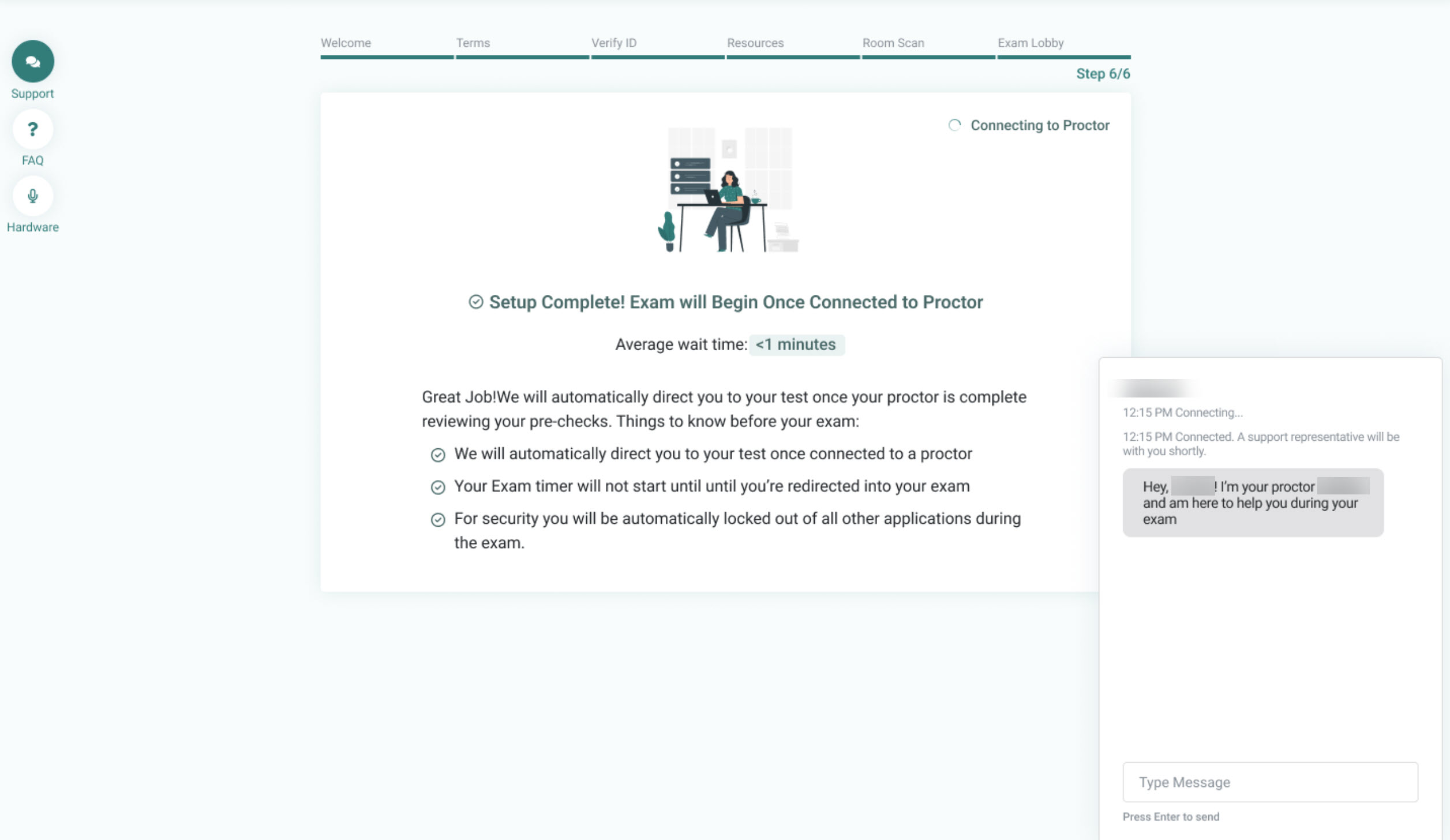
When your proctor connects, they will begin to communicate with you using the chat box. Your chat box is integrated within the Guardian Browser, and it will appear in the bottom right side of the browser window, with the option to toggle it open and closed. Once connected, the proctor will walk you through the authentication process. You may be asked to:
- Show your ID again.
- Make sure you have your government-issued photo ID with you.
-
- You will be required to hold the ID in front of your webcam.
-
- The proctor will need to see both your name and photo clearly.
- Acknowledge and agree to the Exam Rules and Academic Integrity Policy.
- Depending on your exam rules, you may be asked to hold up materials, scratch paper, or other resources you will be using during your exam.
- Show your desk and workspace.
- The proctor will ask you to complete a 360˚ room pan and desk sweep using your webcam to ensure your workspace is clear of any unauthorized materials.
- The proctor may ask to inspect your monitor using your cell phone or reflective surface.
- Complete a person check.
- The proctor may ask to check your wrists and ears for unpermitted devices.
- Secure your cell phone.
- After inspecting your monitor, place your cell phone in a secure location away from your testing area if not permitted during the exam
11. After your identity is authenticated and your testing environment is secure, the proctor will provide access to your exam.
12. You will then have an option to agree to the Okta Certification Program Agreement.
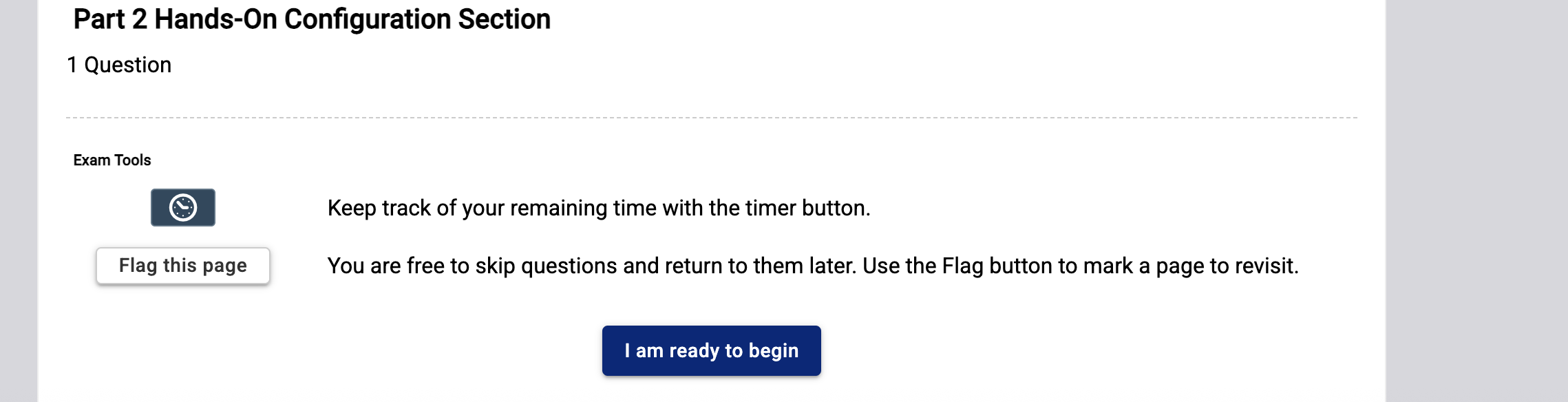
13. The exam instructions will then be displayed on your screen. Click the I AM READY TO BEGIN button when you have read the instructions and are ready to start the exam.
14. You will see a countdown timer on the screen. This timer indicates the amount of time you have remaining to complete the exam.
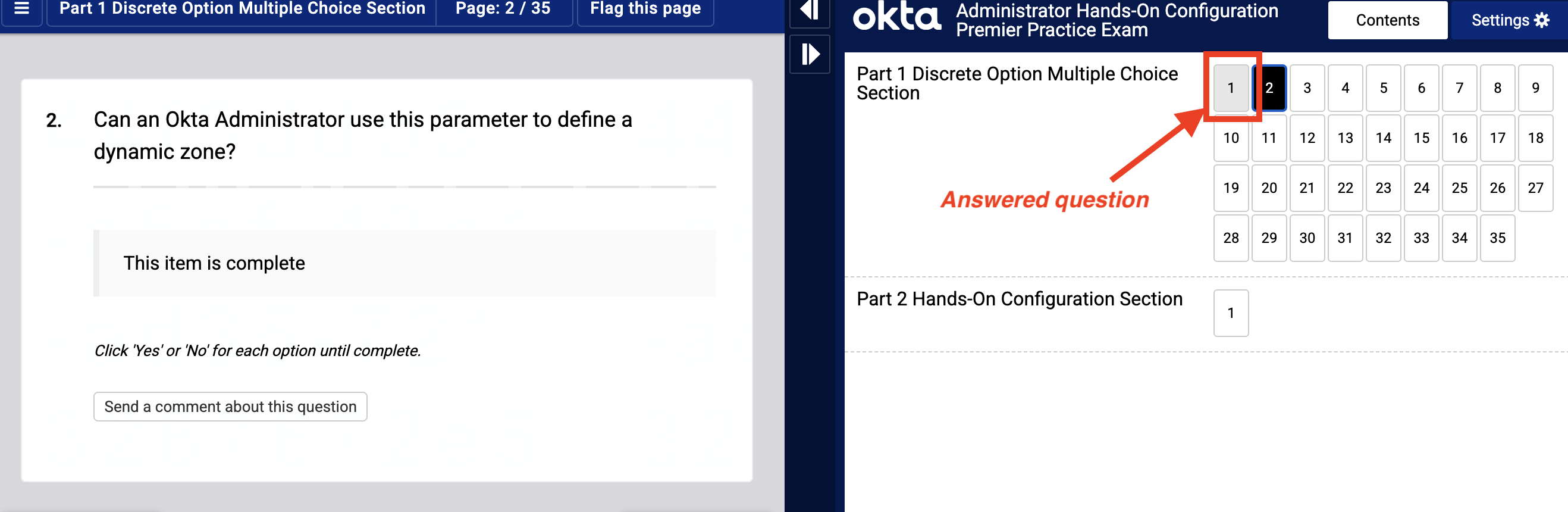
15. After you submit your answer to a question, you cannot change it. Answered questions are indicated on the navigation tool by a gray box.
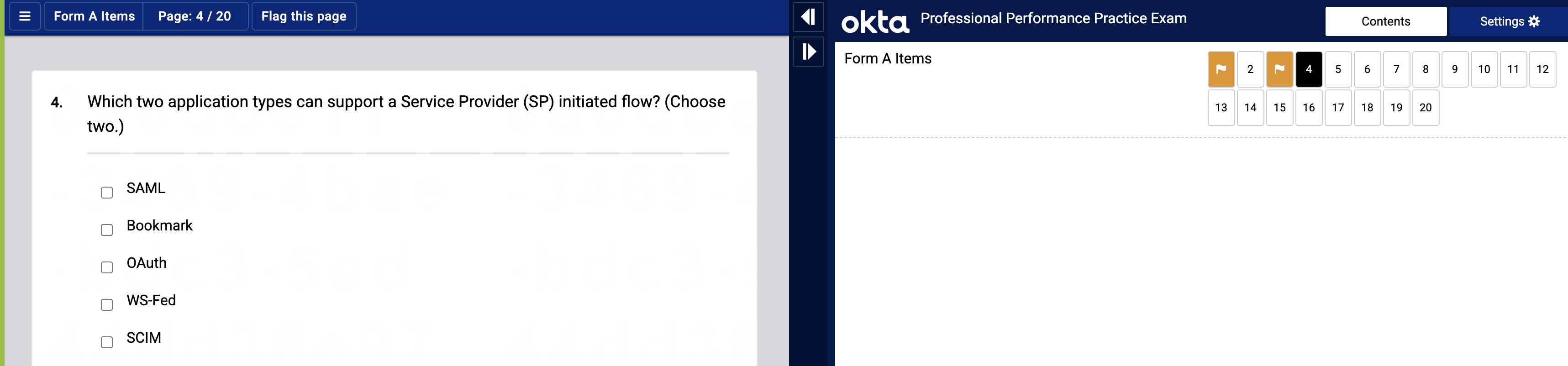
16. If you choose, you can flag questions to pass over and return to during the exam. If you flag a question, the question number on the navigation tool will become orange with a white flag.
If you need technical support during your proctored exam, alert your proctor so they can pause your exam and stop the exam clock. Time elapsed for technical support will not be counted as exam time.
Technical difficulties
If you have issues with exam registration, accessing your exam, or any other online proctoring problems, contact Meazure Learning Support. Phone, Chat, and Ticket Support are available.
These options are available on footer pages of the ProctorU website and on the left side bar in Guardian Browser for immediate access.
You can also reference our FAQs for additional information related to the new platform.
If you have issues when using the Okta Certification Credential Manager, contact Okta Certification Support by sending an email to certification@asqula.com.